In this article:
Our Google Chrome extension lets you convert live webpages, parts of a page, or selected elements, into fully editable mockups. It also lets you bring in AI designs as editable layouts so you can polish and revise them. From the extension, you can also generate design briefs from webpages, grab screenshots, create new Moqups projects or open our app.
In this article, you’ll learn how to install the extension in Chrome, and how to use the extension’s features.
Install the Moqups Extension
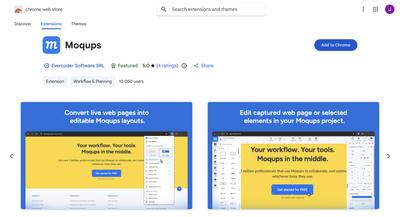
- Visit the Chrome Web Store.
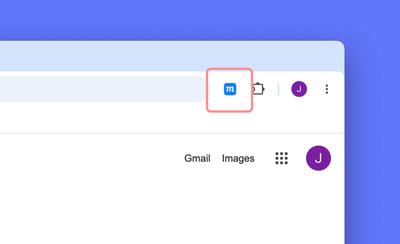
- After installing the extension, the blue Moqups button will appear to the right of the browser's address bar.
Turn live webpages into editable layouts
You may want to work with mockups of live webpages for a variety of reasons – updating and maintaining existing pages, creating new pages that match the design of what's already published, or customising repeated elements across large internal hubs and back-office sites.
The Moqups extensions lets you bring whole webpages or selections into Moqups. The designs come in as fully editable layouts – with each element separated for easy selection and customization.
And options let you use the page's high-fidelity design, or convert that layout into a lo-fi wireframe. You can also import the current window or adjust the layout to desktop, laptop or phone viewports.
To convert a live webpage into an editable mockup:
-
Click the Moqups extension icon to the right of the browser’s address bar
-
Select Hi-Fi Design
-
Choose from…
- Select area to convert part of a page or individual elements
- Current window to convert the entire page
- Desktop, Laptop, or Phone View options to adjust the layout to those viewports
-
In the Selection ready Pop-up…
- Click the Copy to clipboard button to paste the layout into an open Moqups project
- Click the Open in Moqups button to create a new project from the layout
Convert hi-fi webpages into lo-fi wireframes
As well as importing webpages in full fidelity, you can also turn them into grayscale, low-fidelity wireframes. Stripping away the colors and styling can help put the focus on the page's layout, structure and content. This is useful when you want to compare the underlying structure of different pages, experiment with alternative design solutions, or start from a visual blank slate during a rebrand.
To turn a hi-fi webpage into a lo-fi wireframe:
-
Click the Moqups extension icon to the right of the browser’s address bar.
-
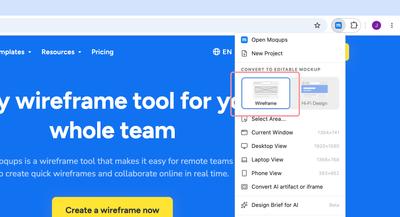
Select Wireframe
-
Choose from…
- Select area to convert part of a page or individual elements
- Current window to convert the entire page
- Desktop, Laptop, or Phone View to adjust the layout to those viewports
-
In the Selection ready Pop-up…
- Click the Copy to clipboard button to paste the layout into an open Moqups project.
- Click the Open in Moqups button to create a new project from the layout.
Bring AI designs into Moqups
You can also use the Moqups extension to turn AI-generated artifacts into fully editable designs. This means you can use AI as a template generator – providing the bulk of the layout and placeholder text – before you customize and finesse the details in Moqups. Your team can also jump back and forth between Moqups and your own AI tool, exporting sections for regeneration, and then refining the output step by step.
To bring an AI design into your Moqups project:
-
Click the Moqups extension icon to the right of the browser’s address bar.
-
Choose Hi-Fi Design or Wireframe.
-
Select Convert AI artifact or iframe
-
Click on the iframe or select an element with the space bar
-
In the Selection ready Pop-up…
- Click the Copy to clipboard button to paste the layout into an open Moqups project.
- Click the Open in Moqups button to create a new project from the layout.
Generate a design brief for AI
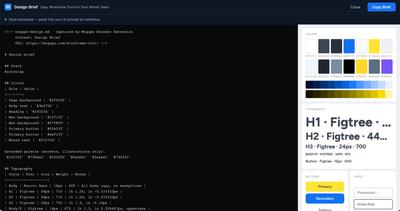
This is a great tool if you’re working with AI and want to give it your branding guidelines. It extracts the style from any browser window to generate a design brief. You can then paste the brief into your AI prompt so it knows what branding guidelines – colors, typography, button and input style – to use as a reference for any new design generation.
Take screenshots
With the extension, you can grab the visible area of a website, a specific selection, or an entire page – and add those shots instantly to your Team Images library. This saves time when you’re putting together a mood board, looking for inspiration, doing competitor research, or creating quick mockups.
To take screenshots:
-
Click the Moqups extension icon to the right of the browser’s address bar.
-
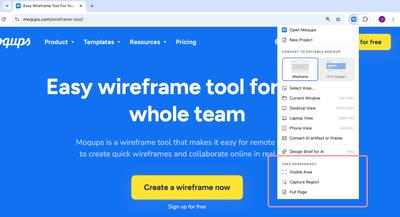
Select one of the Take Screenshot options:
- Visible Area will capture only what’s currently visible in your browser window
- Capture Region will let you click and drag to choose a specific part of the window
- Full Page will grab the entire webpage
-
Your screenshot will open in a new browser tab; here, you can name it, save it directly to your Team Images library in Moqups – or cancel if you want to try again!
-
Once you’ve clicked the Save to Moqups button, and the image has been uploaded, just click the Done! Go to Moqups button to jump to your project.
Enable the eyedropper
If you’re running Chrome Version 95 or higher, you won’t need the Moqups Extension to activate the eyedropper.
For pre-95 versions of Chrome, our extension also enables our app’s eyedropper – so you can target any color on the page, and apply it instantly to your design elements.
Installing the extension – and refreshing any open Moqups tabs – will automatically activate the eyedropper. You’ll find the eyedropper icon in the Format Panel’s color picker.
To use the eyedropper to pick colors:
- Click the eyedropper icon to open an inspector window in the upper-right corner of the screen.
- As you move the crosshair-cursor around the page, the window will display a close up view of the pixels beneath, as well as both their RGB and Hex values.
- Click to select the color beneath the cursor.
Create projects and jump to Moqups
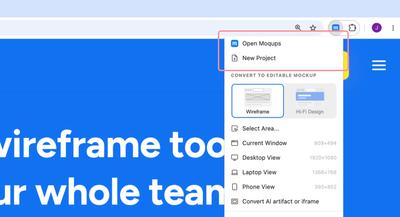
You can instantly create a new project, or go right to your account's Dashboard, by hitting the Moqups button in the top-right corner of your browser.
This is particularly useful when you are jumping between multiple tabs in the browser – or taking screenshots to build mood boards, mockups, and storyboards.
Questions and answers
Is this extension available for other browsers?
Right now, our extension is available for Chrome and Firefox – and Brave users can install the Chrome version. We are working on a Safari extension, but it might take a bit longer to implement.